

الدليل
قم بتكوين Gorbit لاستخدام النماذج المقدمة من Ollama.1
إعداد Ollama ونشر نماذجك
يوضح مستودع Ollama على GitHub
كيفية تنزيل ونشر النماذج على Ollama.عند الاستضافة الذاتية، يكون Ollama مكوّنًا للعمل على المنفذ
11434 افتراضيًا.يمكنك أيضًا تكوين Gorbit لاستخدام خدمة السحابة المُدارة من Ollama.2
Navigate to AI Model Configuration Page
Access the Admin Panel from your user profile icon → Admin Panel → LLM
3
تكوين Ollama
اختر Ollama من المزودين المتاحين.أعطِ مزودك اسمًا للعرض.إذا كنت تستخدم Ollama Cloud، أدخل مفتاح API لـ Ollama Cloud.انقر على زر جلب النماذج المتاحة لرؤية النماذج المتاحة في مثيل Ollama الخاص بك.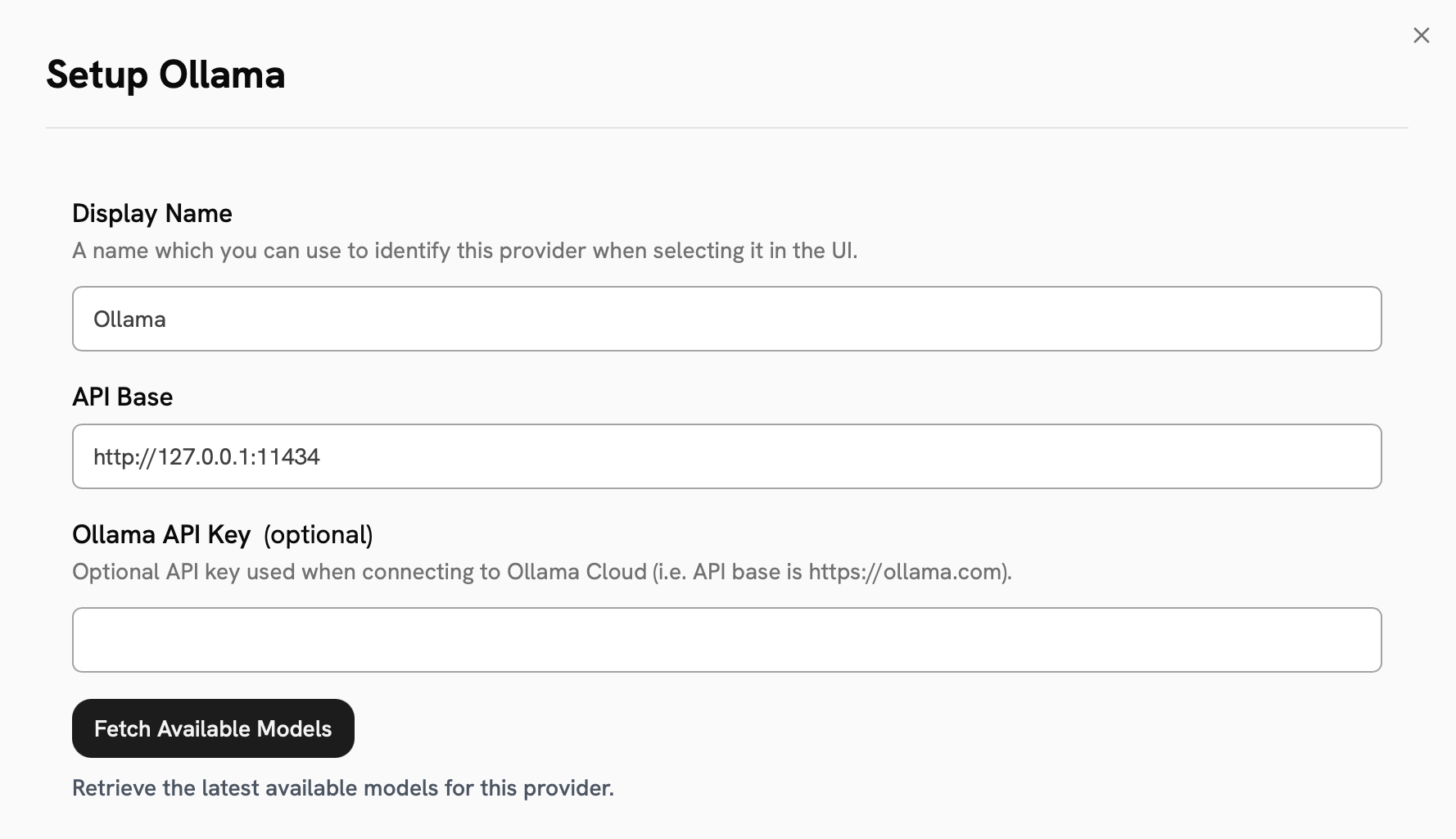
4
Configure Default and Fast Models
The Default Model is selected automatically for new custom Agents and Chat sessions.Designating a Fast Model is optional.
This Fast Model is used behind the scenes for quick operations such as evaluating the type of message,
generating different queries (query expansion), and naming the chat session.
5
Choose Visible Models
In the Advanced Options, you will see a list of all models available from this provider.
You may choose which models are visible to your users in Gorbit.Setting visible models is useful when a provider publishes multiple models and versions of the same model.
6
Designate Provider Access
Lastly, you may select whether or not the provider is public to all users in Gorbit.If set to private,
the provider’s models will be available to Admins and User Groups you explicitly assign the provider to.