

الدليل
1
Navigate to AI Model Configuration Page
Access the Admin Panel from your user profile icon → Admin Panel → LLM
2
تكوين Anthropic
اختر Anthropic من المزودين المتاحين.أعطِ هذا التكوين اسمًا للعرض.أنشئ مفتاح API
من لوحة Anthropic API والصقه في حقل مفتاح API.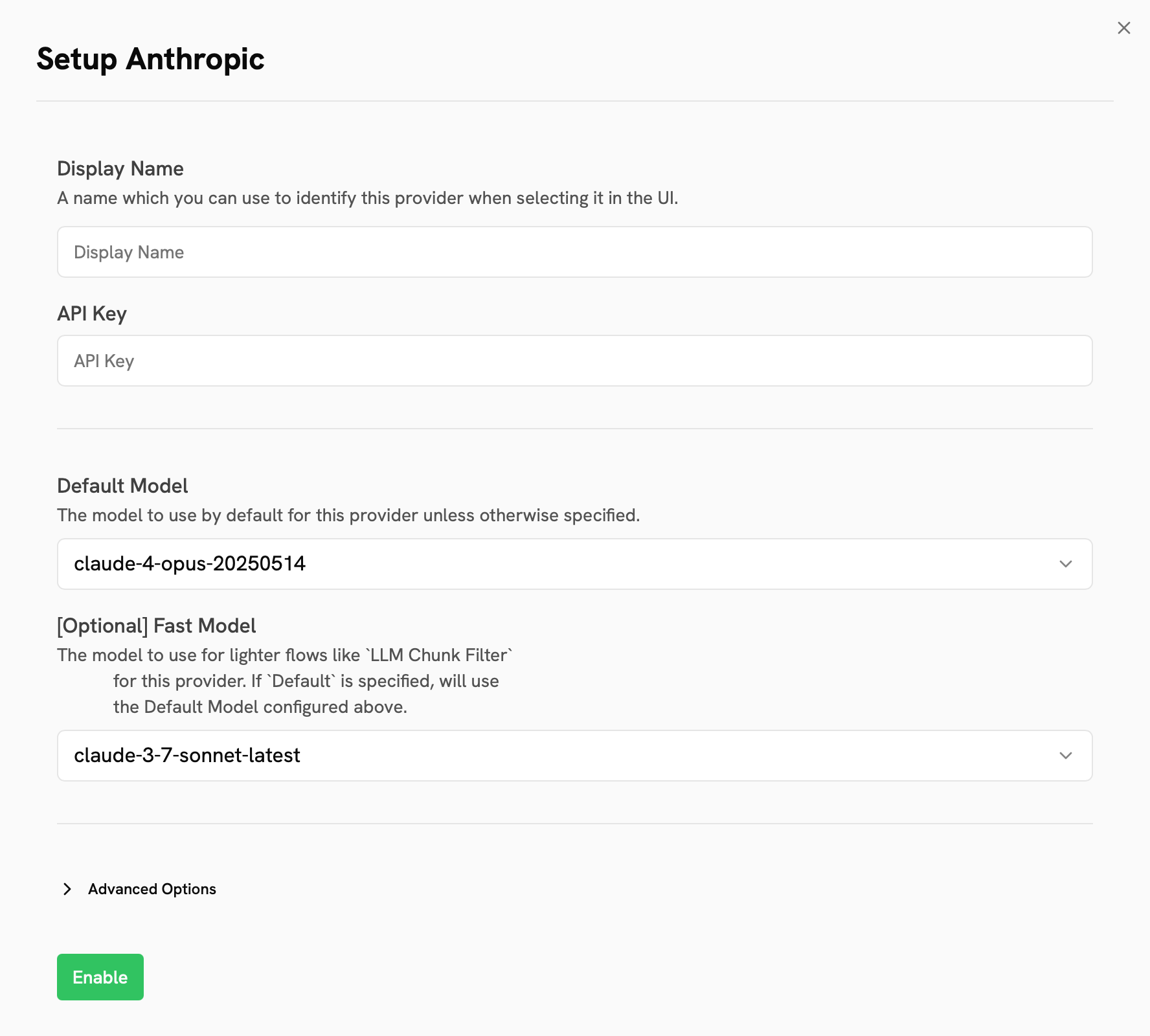
3
Configure Default and Fast Models
The Default Model is selected automatically for new custom Agents and Chat sessions.Designating a Fast Model is optional.
This Fast Model is used behind the scenes for quick operations such as evaluating the type of message,
generating different queries (query expansion), and naming the chat session.
4
Choose Visible Models
In the Advanced Options, you will see a list of all models available from this provider.
You may choose which models are visible to your users in Gorbit.Setting visible models is useful when a provider publishes multiple models and versions of the same model.
5
Designate Provider Access
Lastly, you may select whether or not the provider is public to all users in Gorbit.If set to private,
the provider’s models will be available to Admins and User Groups you explicitly assign the provider to.