> ## Documentation Index
> Fetch the complete documentation index at: https://docs.gorbit.cloud/llms.txt
> Use this file to discover all available pages before exploring further.
# Chrome Extension
> Use Gorbit in Chrome from any page
The Gorbit Chrome Extension allows users to access Gorbit from anywhere in their browser.
Features include:
* An Gorbit browser home page
* An Gorbit sidebar in your browser
* Contextual search on selected text
* Deep Research capabilities
Coming soon: Full page context chat and indexing visited pages into your Gorbit knowledge base!
 ## Installation Options
**Gorbit Cloud users**: Install directly from the Chrome Web Store
**Self-hosted users**: Your administrator will provide installation instructions
## Manual Installation (Self-Hosted)
Clone the [Gorbit Chrome Extension](https://github.com/gorbit-dot-app/gorbit-chrome-extension) repo from GitHub.
* Visit `chrome://extensions/` in your Chrome browser
* In the upper right corner, click **Developer mode** to enable it
## Installation Options
**Gorbit Cloud users**: Install directly from the Chrome Web Store
**Self-hosted users**: Your administrator will provide installation instructions
## Manual Installation (Self-Hosted)
Clone the [Gorbit Chrome Extension](https://github.com/gorbit-dot-app/gorbit-chrome-extension) repo from GitHub.
* Visit `chrome://extensions/` in your Chrome browser
* In the upper right corner, click **Developer mode** to enable it
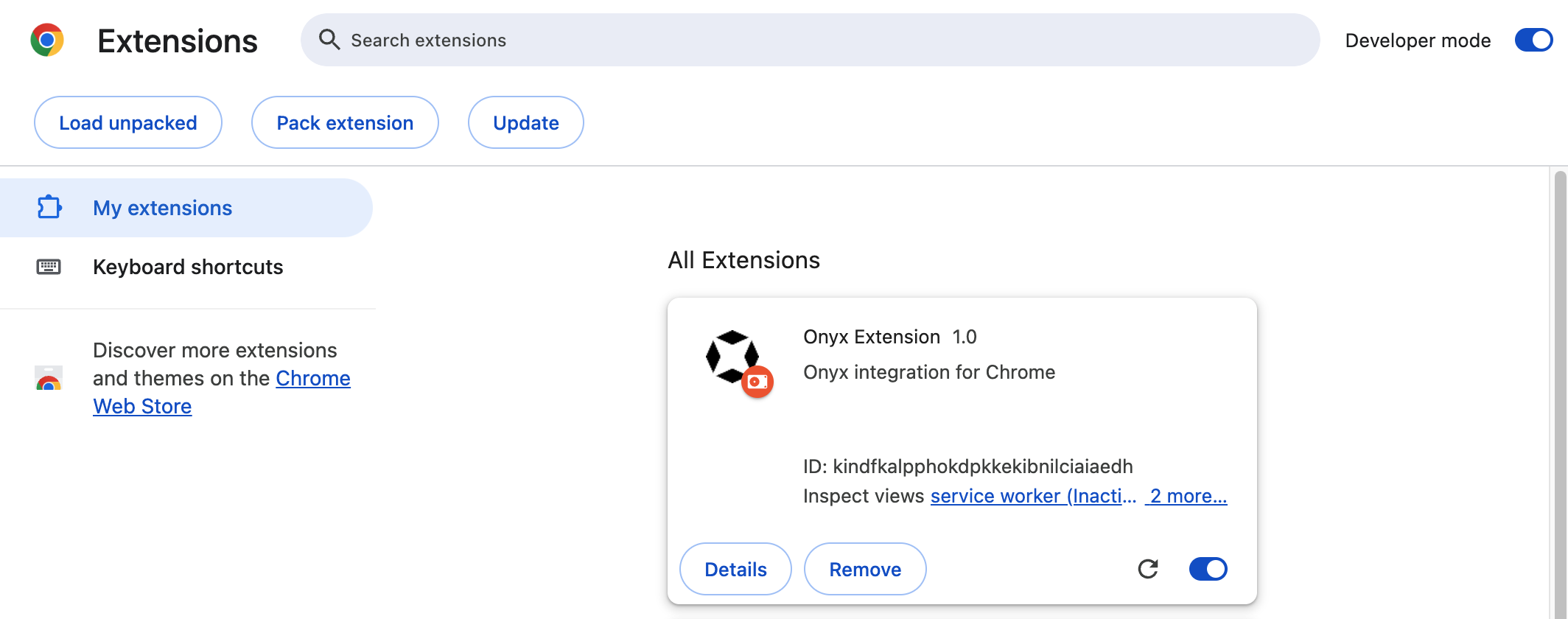 * Click **Load unpacked**
* Select the folder containing the Gorbit Chrome Extension files
* Click **Load**
The extension is now installed and ready to configure.
* Click the three dots (...) next to the extension
* Select **Options**
* Set the **Root Domain** to your self-hosted Gorbit instance's URL
* Click **Load unpacked**
* Select the folder containing the Gorbit Chrome Extension files
* Click **Load**
The extension is now installed and ready to configure.
* Click the three dots (...) next to the extension
* Select **Options**
* Set the **Root Domain** to your self-hosted Gorbit instance's URL
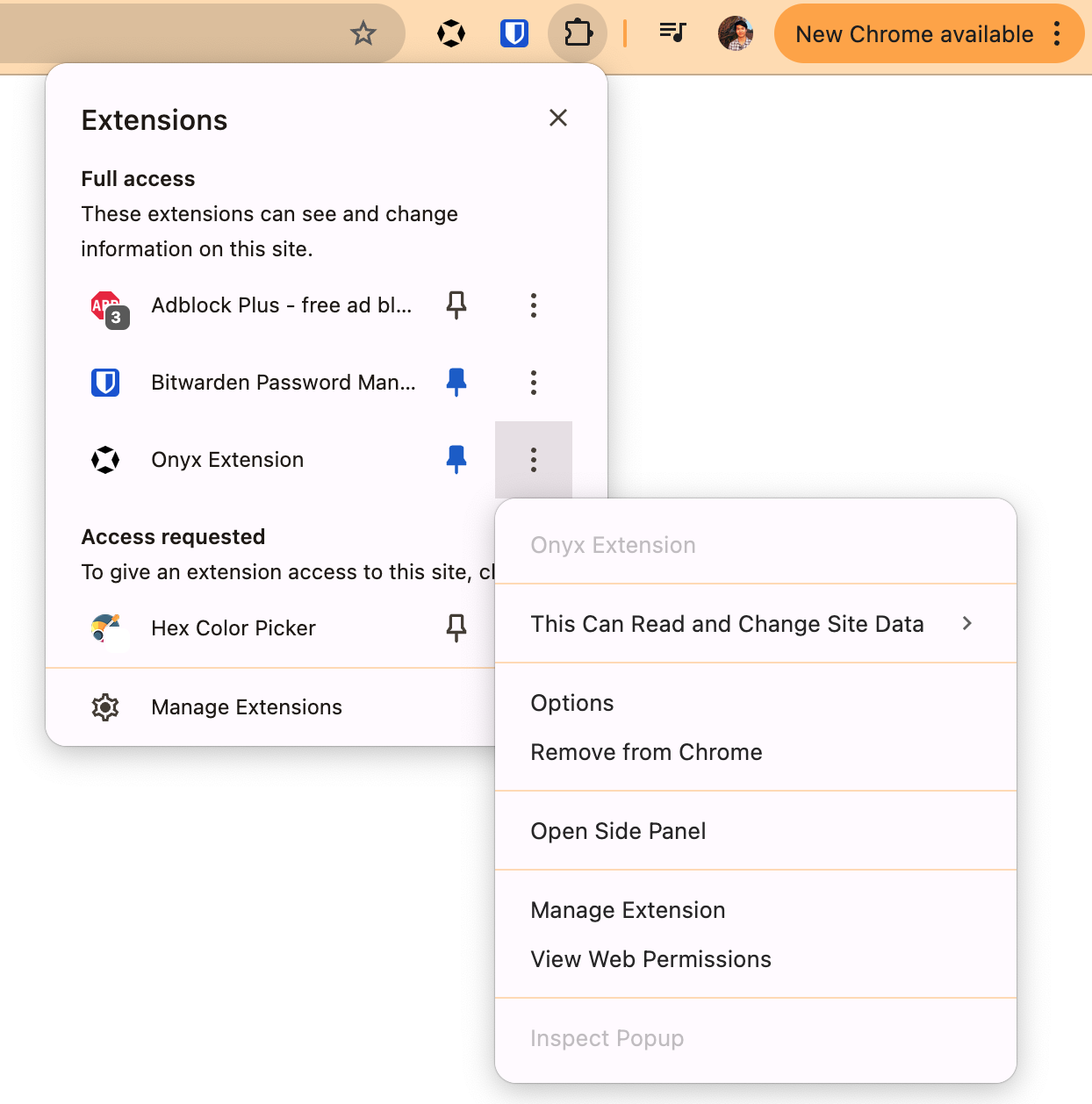
 The extension will now connect to your self-hosted Gorbit instance and can be used from any page in Chrome.
## Enterprise Deployment
For organizations deploying the extension at scale, use Google Admin Console for centralized management.
* Log in to your Google Admin console
* Navigate to **Devices → Chrome → Apps and extensions**
* Obtain the Chrome extension ID from an Gorbit team member - Click the yellow
plus icon to add the extension - Enter the Chrome extension ID and click **Add**
Configure deployment options such as:
* Force installation for specific organizational units
* User access controls
* Update policies and version management
* Installation policies (allowed, forced, or blocked)
Remember to save your changes after configuring the extension settings.
### Self-Hosting the Extension
For private distribution without the Chrome Web Store:
Use Chrome's developer tools to create a CRX file
Place the CRX and update manifest on your server
Use Admin console or Group Policy to point to your hosted files
## Extension Management
### Update Policies
* **Enterprise deployments**: Chrome handles automatic updates every 5 hours
* **Version pinning**: Available for force-installed extensions, but avoid extended use due to
security updates
* **Self-hosted updates**: Increment version in manifest.json and replace hosted files
The extension will now connect to your self-hosted Gorbit instance and can be used from any page in Chrome.
## Enterprise Deployment
For organizations deploying the extension at scale, use Google Admin Console for centralized management.
* Log in to your Google Admin console
* Navigate to **Devices → Chrome → Apps and extensions**
* Obtain the Chrome extension ID from an Gorbit team member - Click the yellow
plus icon to add the extension - Enter the Chrome extension ID and click **Add**
Configure deployment options such as:
* Force installation for specific organizational units
* User access controls
* Update policies and version management
* Installation policies (allowed, forced, or blocked)
Remember to save your changes after configuring the extension settings.
### Self-Hosting the Extension
For private distribution without the Chrome Web Store:
Use Chrome's developer tools to create a CRX file
Place the CRX and update manifest on your server
Use Admin console or Group Policy to point to your hosted files
## Extension Management
### Update Policies
* **Enterprise deployments**: Chrome handles automatic updates every 5 hours
* **Version pinning**: Available for force-installed extensions, but avoid extended use due to
security updates
* **Self-hosted updates**: Increment version in manifest.json and replace hosted files