> ## Documentation Index
> Fetch the complete documentation index at: https://docs.gorbit.cloud/llms.txt
> Use this file to discover all available pages before exploring further.
# Zulip
> Access messages from Zulip streams
## How it works
The Zulip connector pulls in all streams and topics according to the permissions assigned to the bot user.
## Setting up
### Authorization
Gorbit interfaces with Zulip as a Zulip Bot which is authenticated using the `zuliprc` config format.
For more context directly from Zulip, refer to the following docs:
* [https://zulip.com/api/running-bots](https://zulip.com/api/running-bots)
* [https://zulip.com/api/configuring-python-bindings](https://zulip.com/api/configuring-python-bindings)
Start by creating a Zulip Bot.
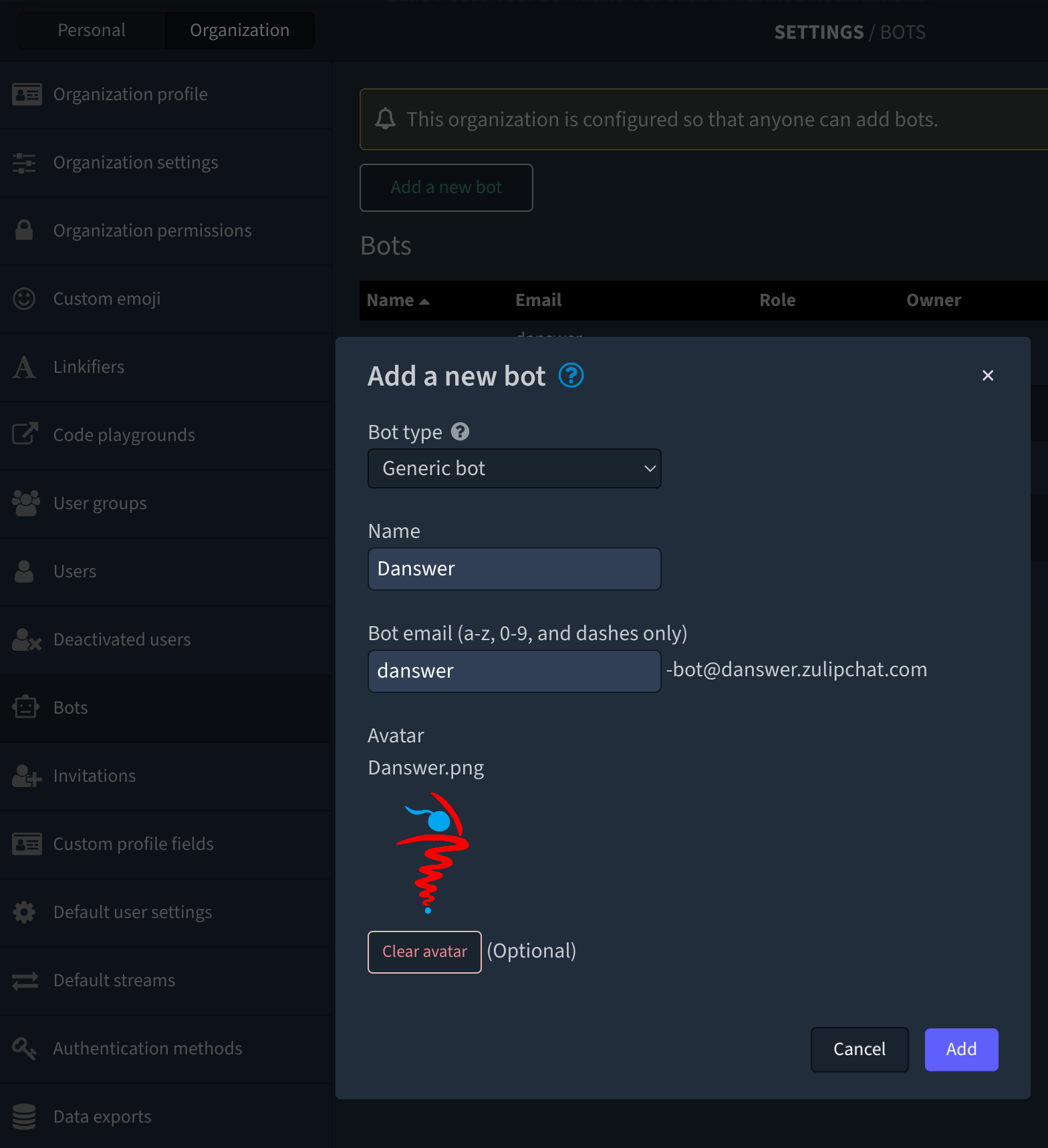 Copy the Bot authentication info (`zuliprc` contents), see red arrow below:
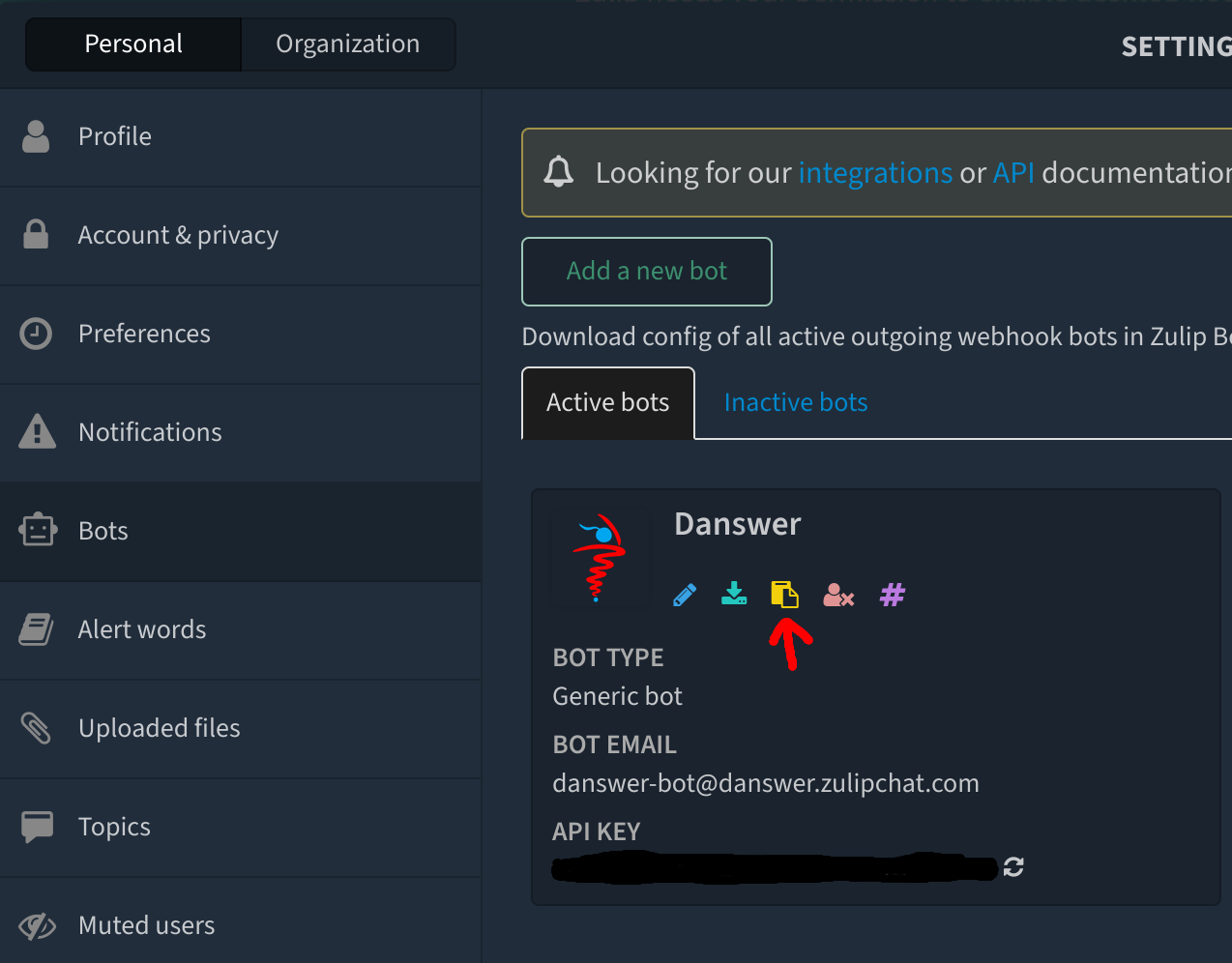 Keep this copied text to provide to Gorbit in the next step
### Indexing
Navigate to the Admin Panel and select the **Zulip** Connector
In **Step 1**, paste in the copied `zuliprc` value
Grab your Zulip Realm/URL info, see below:
Keep this copied text to provide to Gorbit in the next step
### Indexing
Navigate to the Admin Panel and select the **Zulip** Connector
In **Step 1**, paste in the copied `zuliprc` value
Grab your Zulip Realm/URL info, see below:
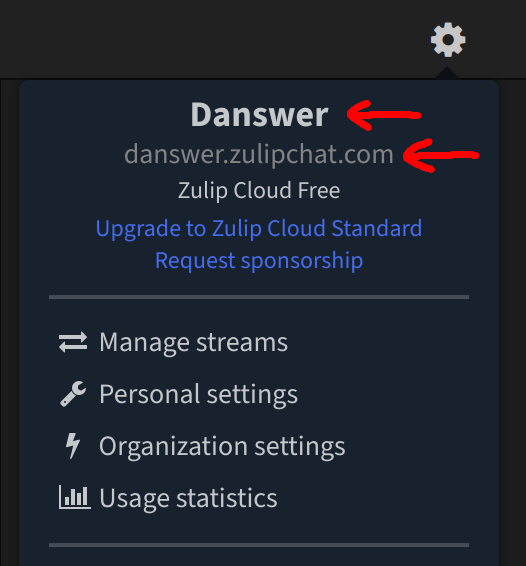 In **Step 2**, provide the values for the Realm and URL
