> ## Documentation Index
> Fetch the complete documentation index at: https://docs.gorbit.cloud/llms.txt
> Use this file to discover all available pages before exploring further.
# S3 Access Keys
> Authorize the S3 connector using AWS Access Keys.
## AWS Access Keys Authorization
Log into your AWS Management Console.
Navigate to the IAM (Identity and Access Management) dashboard.
In the left sidebar, click on "Users" and then "Create user".
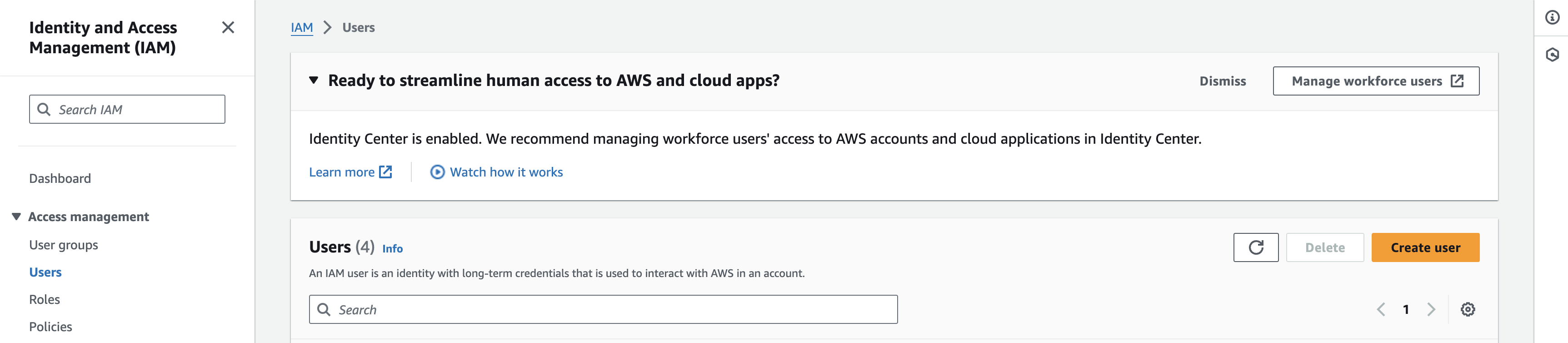 Set a name for the new user (e.g., "GorbitS3Connector") and click "Next".
Click "Attach policies directly" and search for "AmazonS3ReadOnlyAccess" or a similarly permissive policy.
Select this policy and click "Next".
Add any tags if needed, then click "Create user".
On the users page, click on the user you just created. In the summary section,
click "Create access key" and choose "Third-party service" as the use case. Confirm the disclaimer and continue.
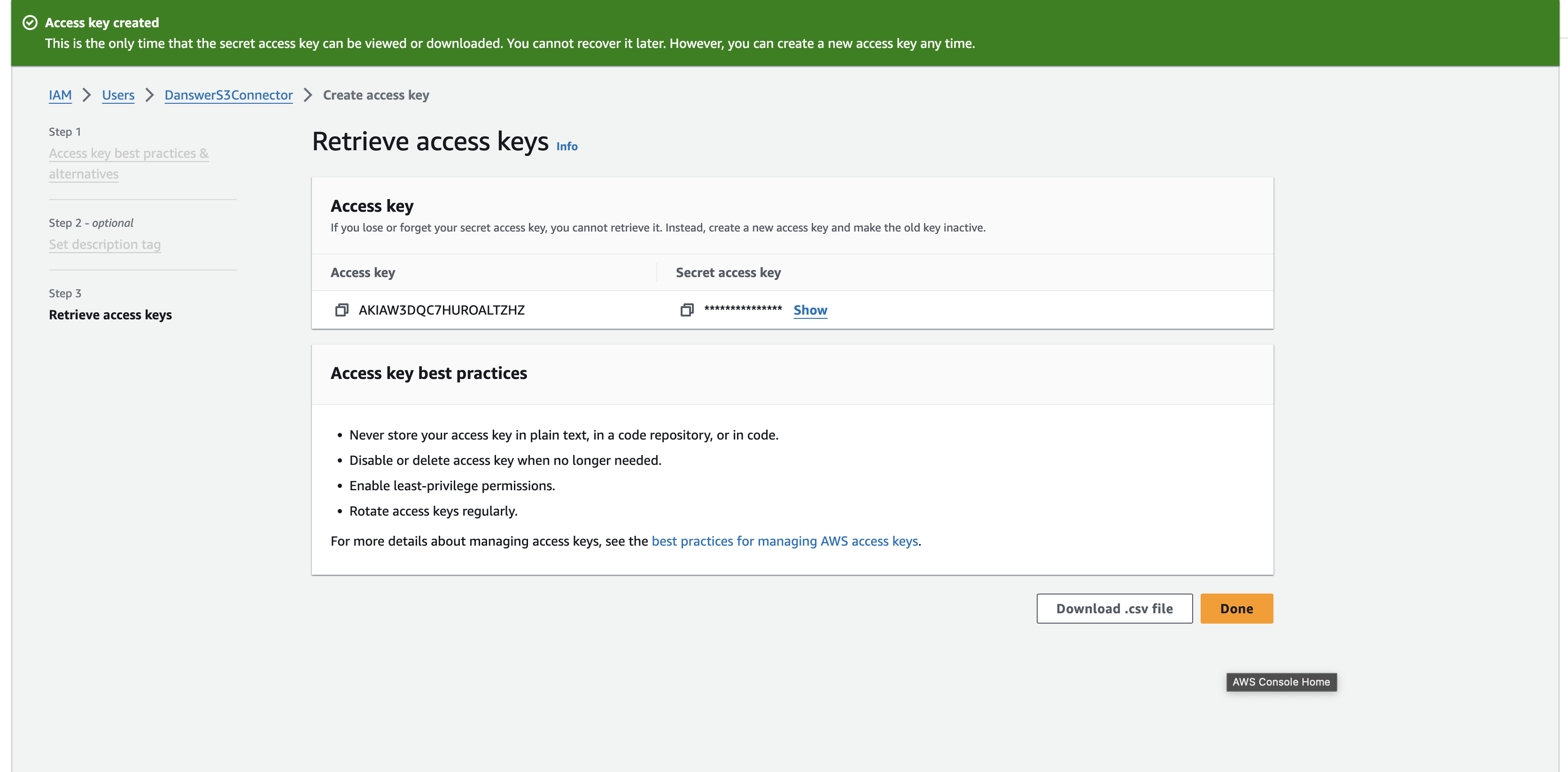
Optionally set a description tag and then press "create access key".
Copy the Access Key ID and Secret Access Key immediately; you won't be able to view the secret again.
Set a name for the new user (e.g., "GorbitS3Connector") and click "Next".
Click "Attach policies directly" and search for "AmazonS3ReadOnlyAccess" or a similarly permissive policy.
Select this policy and click "Next".
Add any tags if needed, then click "Create user".
On the users page, click on the user you just created. In the summary section,
click "Create access key" and choose "Third-party service" as the use case. Confirm the disclaimer and continue.
Optionally set a description tag and then press "create access key".
Copy the Access Key ID and Secret Access Key immediately; you won't be able to view the secret again.
 ### Credential Entry in Gorbit
When configuring the S3 connector in Gorbit, you'll enter your credentials as follows:
* **AWS Access Key ID**: Paste the Access Key ID you copied from AWS
* **AWS Secret Access Key**: Paste the Secret Access Key you copied from AWS
### Credential Entry in Gorbit
When configuring the S3 connector in Gorbit, you'll enter your credentials as follows:
* **AWS Access Key ID**: Paste the Access Key ID you copied from AWS
* **AWS Secret Access Key**: Paste the Secret Access Key you copied from AWS
 Once you have your AWS Access Keys, proceed to the [indexing steps in the overview](./overview#indexing)
to configure your S3 connector.
Once you have your AWS Access Keys, proceed to the [indexing steps in the overview](./overview#indexing)
to configure your S3 connector.