> ## Documentation Index
> Fetch the complete documentation index at: https://docs.gorbit.cloud/llms.txt
> Use this file to discover all available pages before exploring further.
# Fireflies
> Access meeting transcripts from Fireflies
## How it works
The Fireflies connector indexes meetings from your Fireflies account.
## Setting up
### Authorization
Login to Fireflies (user must be authorized).
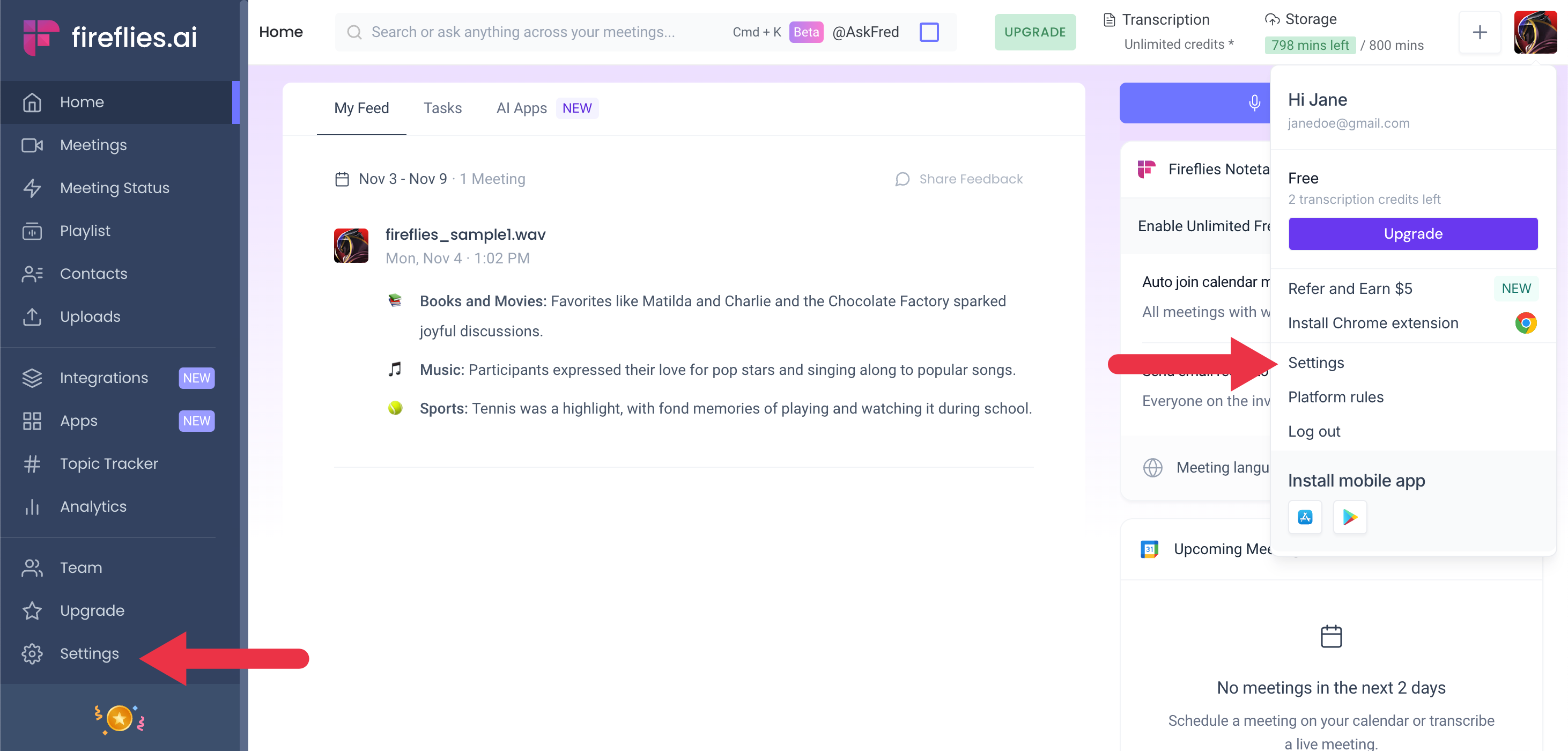
Click on your profile avatar and select **Settings**, or click on **Settings** in the sidebar.
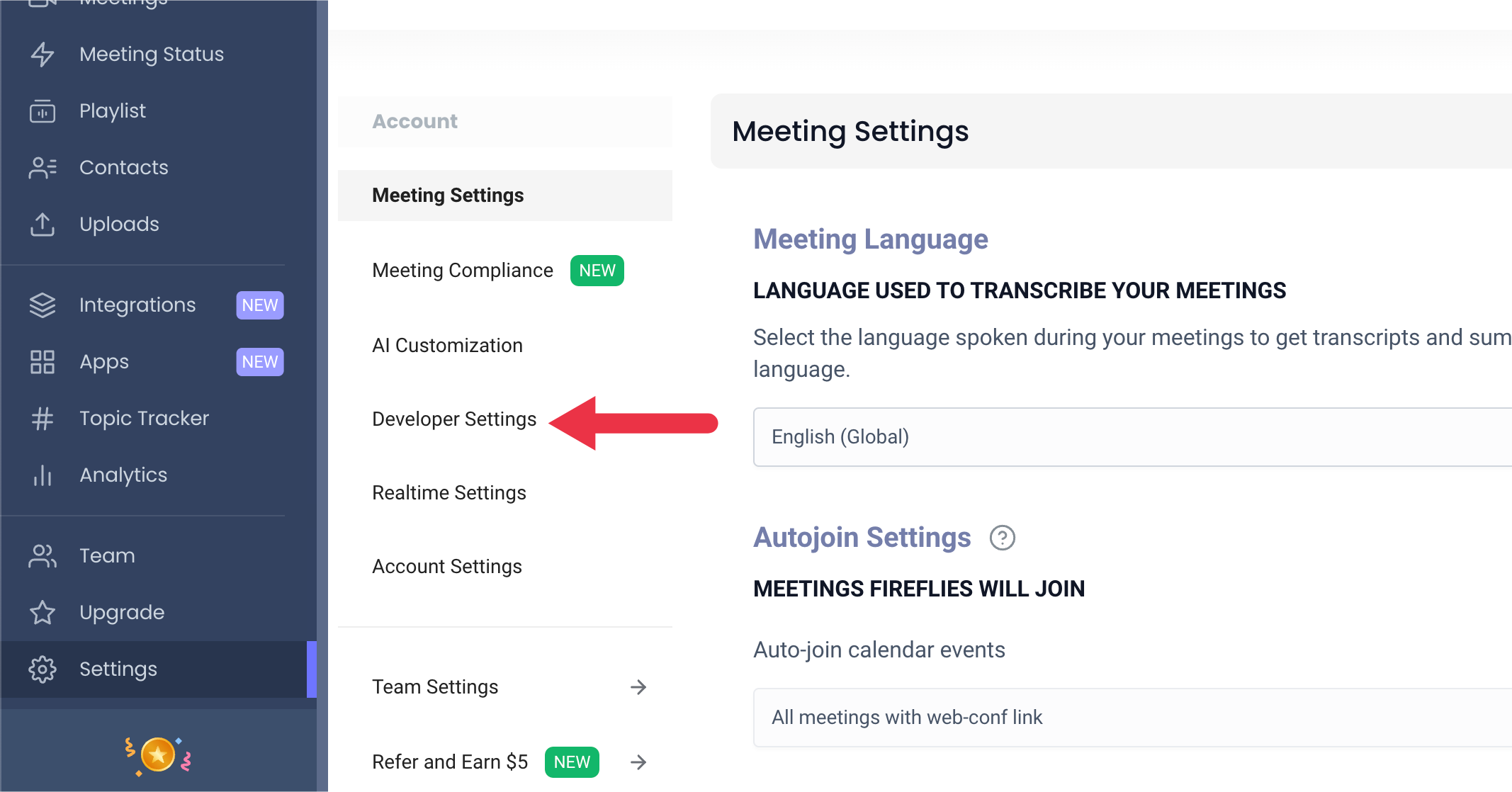
 Select **Developer Settings**.
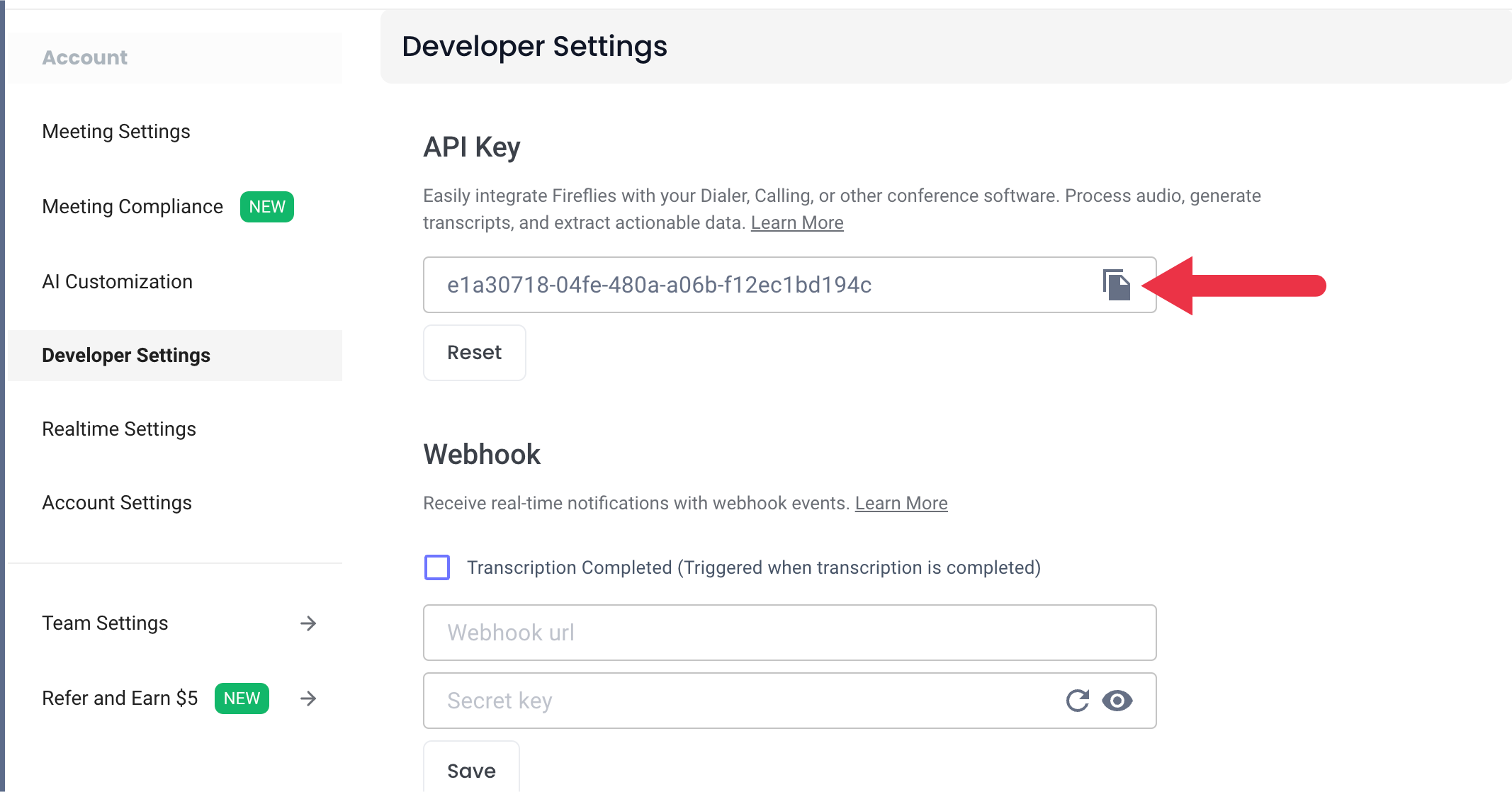
 Copy the **API Key**.
 Use the API key to authorize your Fireflies connector in Gorbit.
### Indexing
Navigate to the Admin Panel. In the sidebar select **Add Connector** and click on the **Fireflies** tile.
Select **Create New** and then provide your **API Key**, along with an optional name for your credentials.
Click **Create**; your credentials will be saved and automatically selected.
Click **Continue**, choose a name, determine the document access, and assign groups for your connector.
Click **Create Connector**. Gorbit will automatically begin indexing your meetings.
Use the API key to authorize your Fireflies connector in Gorbit.
### Indexing
Navigate to the Admin Panel. In the sidebar select **Add Connector** and click on the **Fireflies** tile.
Select **Create New** and then provide your **API Key**, along with an optional name for your credentials.
Click **Create**; your credentials will be saved and automatically selected.
Click **Continue**, choose a name, determine the document access, and assign groups for your connector.
Click **Create Connector**. Gorbit will automatically begin indexing your meetings.