> ## Documentation Index
> Fetch the complete documentation index at: https://docs.gorbit.cloud/llms.txt
> Use this file to discover all available pages before exploring further.
# White Labeling
> Customize Gorbit's branding and appearance
White labeling allows you to customize Gorbit's appearance to match your organization's identity.
White labeling is an Enterprise Edition feature.
## White Labeling Options
 ### Name and Logo
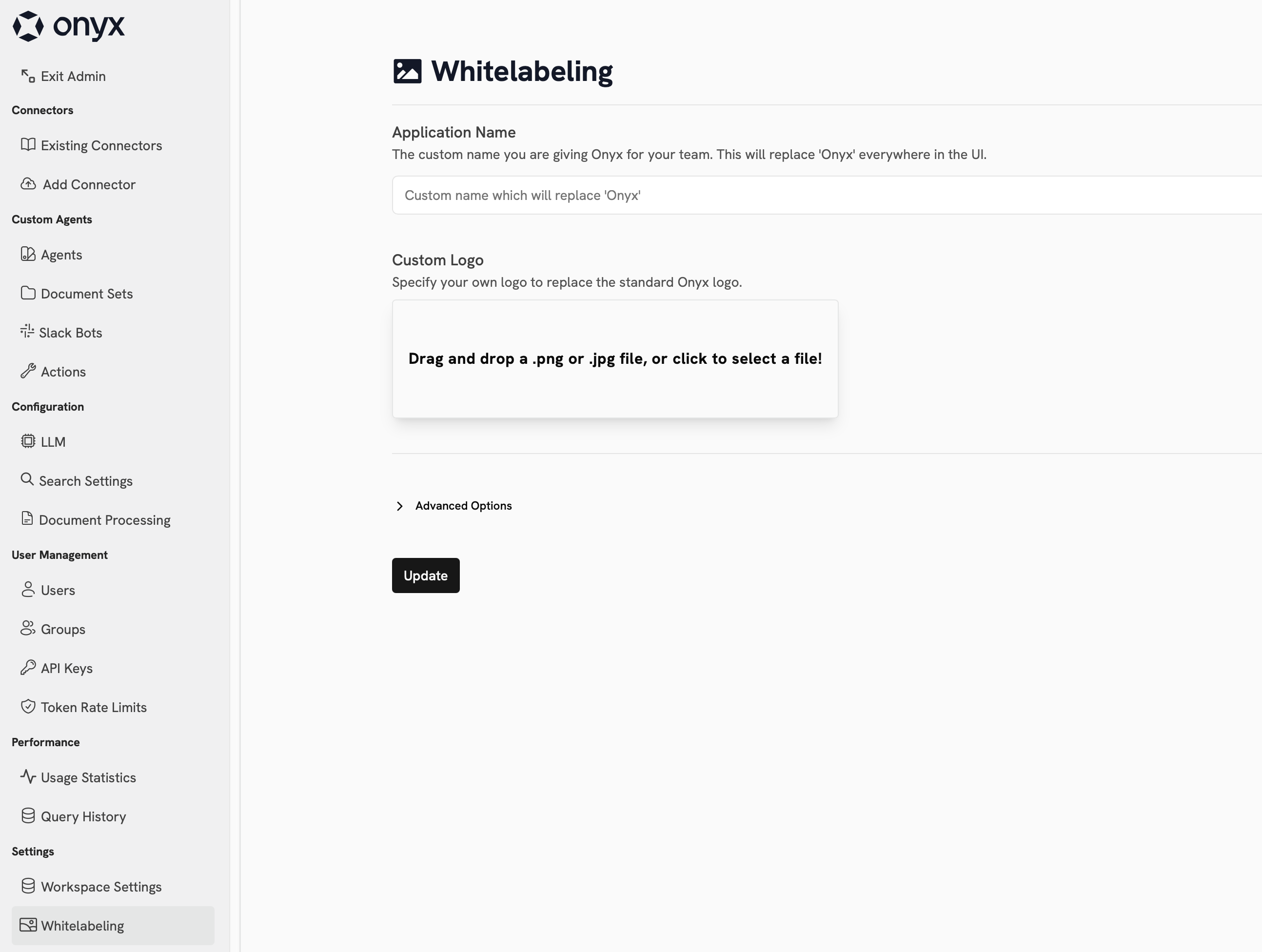
Adjust the name and logo of your Gorbit instance by specifying **Application Name** and uploading a **Custom Logo**.
These elements change what is shown in the top left corner of the Gorbit interface as well as on the login page.
### Headers and Popups
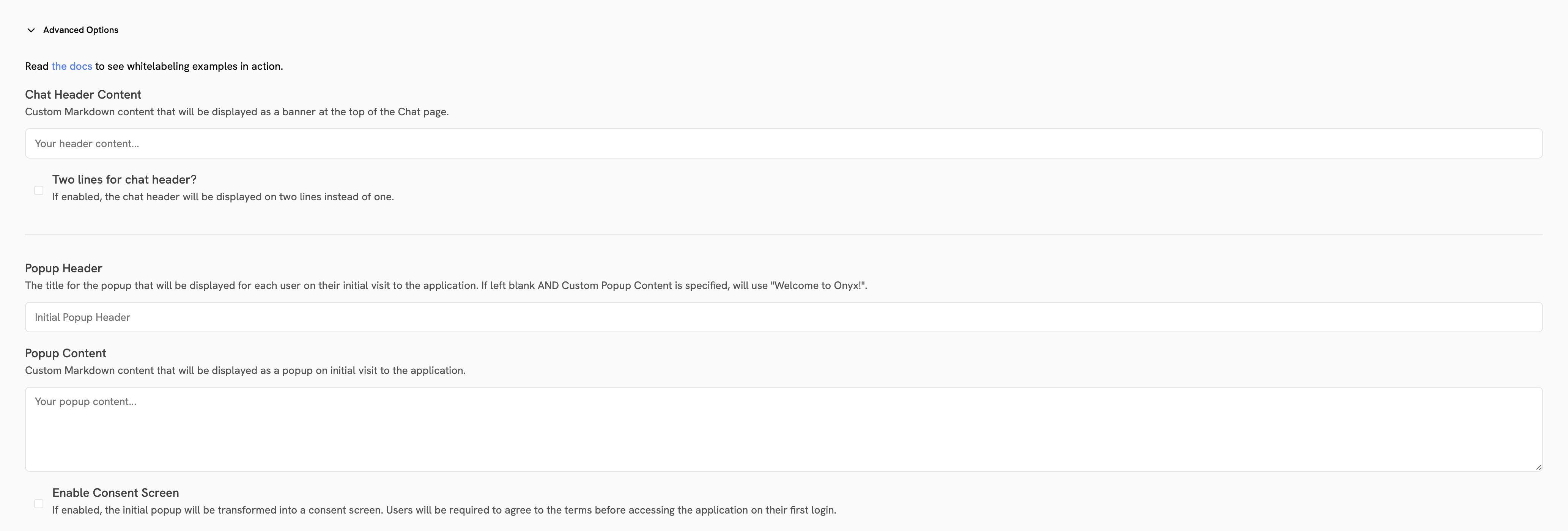
In the **Advanced Options** section, you can add content in the header as well as a custom popup window.
Additionally, you can enable a Consent Screen that will be shown to users before they can access the Gorbit interface.
### Name and Logo
Adjust the name and logo of your Gorbit instance by specifying **Application Name** and uploading a **Custom Logo**.
These elements change what is shown in the top left corner of the Gorbit interface as well as on the login page.
### Headers and Popups
In the **Advanced Options** section, you can add content in the header as well as a custom popup window.
Additionally, you can enable a Consent Screen that will be shown to users before they can access the Gorbit interface.
 ### Footer
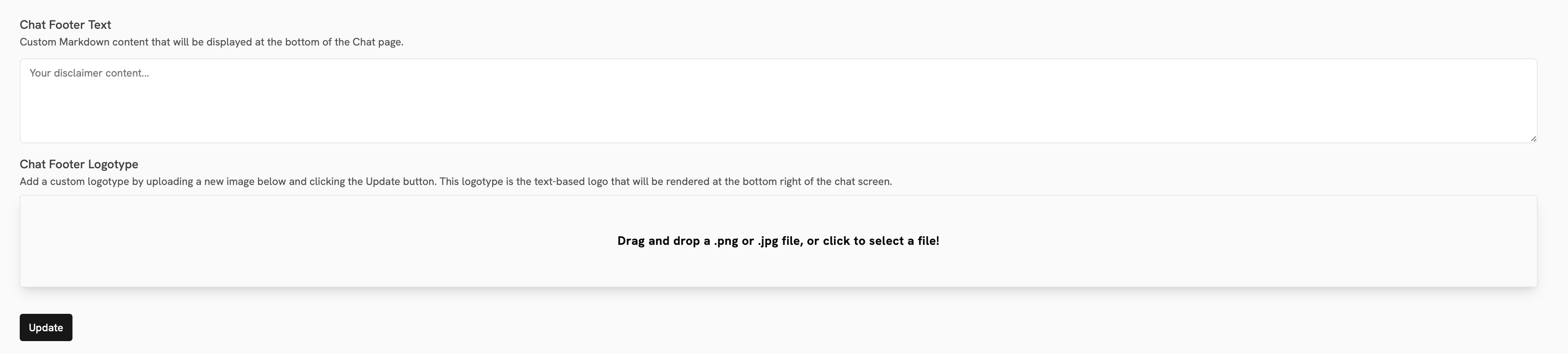
Below the Consent Screen toggle, you can add content to the footer of the Gorbit interface.
### Footer
Below the Consent Screen toggle, you can add content to the footer of the Gorbit interface.
 ## Color Theming
Gorbit uses [Tailwind CSS](https://tailwindcss.com/).
### Theme Architecture
The color system is built on two main files:
* `web/tailwind-themes/tailwind.config.js`: Base Tailwind configuration and color definitions
* `web/src/app/globals.css`: CSS variables for colors used in the Tailwind config
### Customization Methods
Navigate to `web/src/app/globals.css`
Modify the CSS variables to customize base colors (accent colors, backgrounds, etc.)
Navigate to `web/tailwind-themes/tailwind.config.js`
Override specific values from the base configuration
For comprehensive theming:
Navigate to `web/tailwind-themes/`
Create a new folder with your organization's name
Create a `tailwind.config.js` file in this folder
Override any values from the base configuration
Set the `NEXT_PUBLIC_THEME` environment variable to your organization's folder name
### Example Configuration
To change the background to black, create or modify your theme file:
```javascript theme={null}
/** @type {import('tailwindcss').Config} */
module.exports = {
theme: {
extend: {
colors: {
"background": "#000000",
},
},
},
};
```
Color customizations require building Gorbit from source. For local testing,
restart the NextJS application to apply changes.
## Color Theming
Gorbit uses [Tailwind CSS](https://tailwindcss.com/).
### Theme Architecture
The color system is built on two main files:
* `web/tailwind-themes/tailwind.config.js`: Base Tailwind configuration and color definitions
* `web/src/app/globals.css`: CSS variables for colors used in the Tailwind config
### Customization Methods
Navigate to `web/src/app/globals.css`
Modify the CSS variables to customize base colors (accent colors, backgrounds, etc.)
Navigate to `web/tailwind-themes/tailwind.config.js`
Override specific values from the base configuration
For comprehensive theming:
Navigate to `web/tailwind-themes/`
Create a new folder with your organization's name
Create a `tailwind.config.js` file in this folder
Override any values from the base configuration
Set the `NEXT_PUBLIC_THEME` environment variable to your organization's folder name
### Example Configuration
To change the background to black, create or modify your theme file:
```javascript theme={null}
/** @type {import('tailwindcss').Config} */
module.exports = {
theme: {
extend: {
colors: {
"background": "#000000",
},
},
},
};
```
Color customizations require building Gorbit from source. For local testing,
restart the NextJS application to apply changes.